Audio Settings
For optimal audio quality during your call, you may adjust your audio input and output settings in the Lobby before joining the meeting room. However, if you didn't have a chance to do so, don't worry!
Sound
You can easily turn on or off the sound coming from other attendees within the room.


TIP: Press the "S" key on your keyboard to enable or disable audio coming from other attendees.
Audio Output
By default, the audio during your session will come through your device’s speakers. If you wish to change the output of your audio, follow these steps:
1. Click the arrow to the right of the Sound icon. You will be presented with the available audio output options.
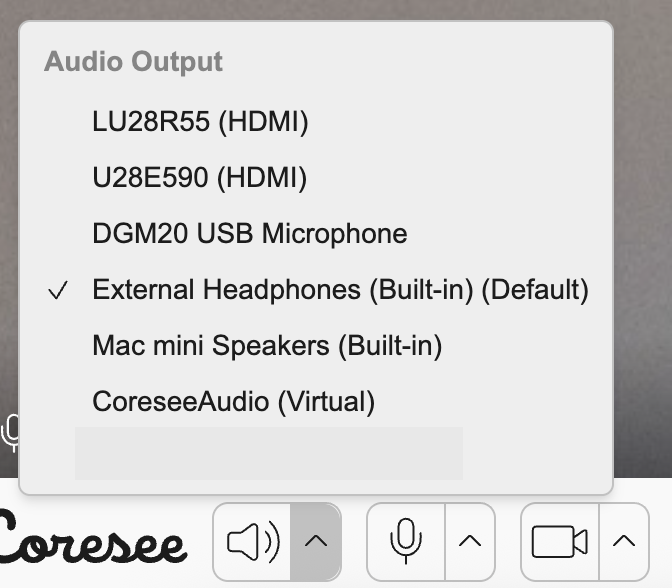
2. Select the connected audio output device you would like to use to listen to the meeting room audio. Once you have selected your preferred audio output, the speaker settings will automatically be updated.
Microphone
You can mute and unmute yourself by clicking on the microphone icon.


TIP: Press the "M" key on your keyboard to enable or disable your microphone.
Audio Input
By default, audio will be picked up through your computer microphone. If you wish to change the input of your audio, follow these steps:
1. Click the arrow to the right of the Microphone icon. You will be presented with the available audio input options, directly above the Microphone icon.
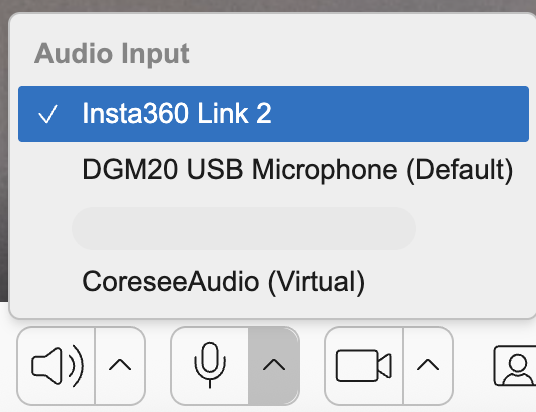
2. Select the microphone you would like to use to speak to the meeting room. Once you have selected your preferred audio input, the microphone settings will automatically be updated.
Video Settings
For the best video quality during your meeting, adjust your video input in the Lobby before joining the meeting room. However, you can also adjust settings while in your meeting room.
Camera
You can turn on or off your camera by clicking on the icon


TIP: Press the "C" key on your keyboard to enable or disable your video feed.
Video Input
By default, video will be received through your computer camera. If you want to change the input of your video, follow these steps:
1. Click the arrow to the right of the Camera icon. You will be presented with the available video input.
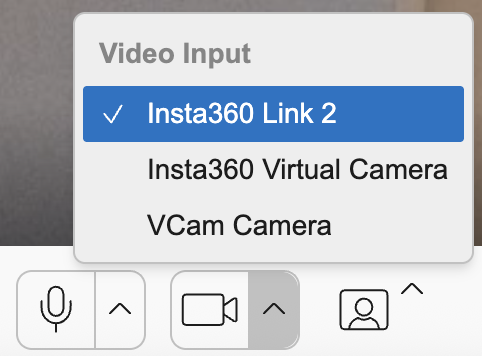
2. Select the camera you would like to use in the meeting room.
Need additional support?
Our support team is available to assist you with any questions or concerns you may have. Feel free to reach out by emailing us at help@coresee.com
Was this article helpful?
That’s Great!
Thank you for your feedback
Sorry! We couldn't be helpful
Thank you for your feedback
Feedback sent
We appreciate your effort and will try to fix the article