For Coresee to use your camera and microphone in a session, Chrome needs permission to access those devices. This article explains how to grant that permission the first time, how to restore it if you declined or missed the prompt, and what happens if you join without permissions enabled.
Granting permissions the first time
The first time you join a Coresee room in Chrome, the browser will show a permission prompt asking whether it can access your camera and microphone.
The Chrome permission prompt
When you enter a room for the first time, a popup appears near the top of the browser window. It looks like this:
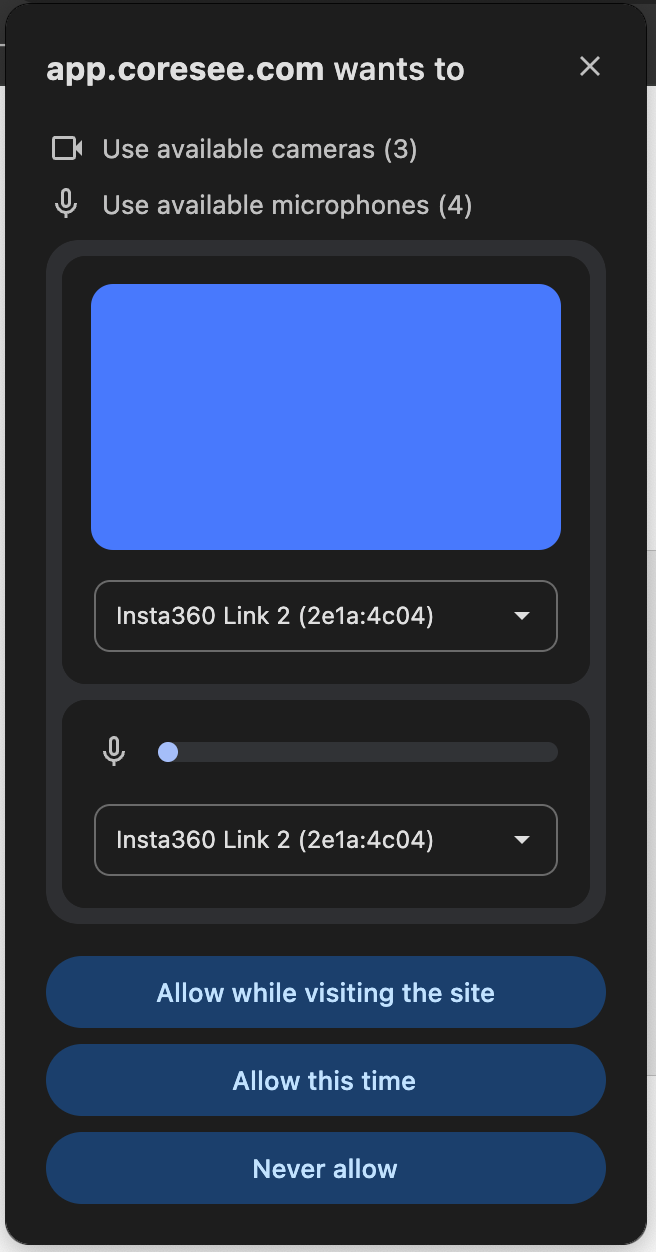
Choose one of the two Allow options:
- Allow while visiting this site — grants permission permanently for coresee.com. Chrome will remember this and won't ask again.
- Allow this time — grants permission for this session only. Chrome will ask again the next time you join a room.
If you blocked or dismissed the prompt
If you clicked Don't allow or closed the prompt without responding, Chrome blocks Coresee from accessing your camera and microphone. You'll need to restore access manually through Chrome's site settings.
How to tell if permissions are blocked
Look at the address bar in Chrome and open the settings menu.
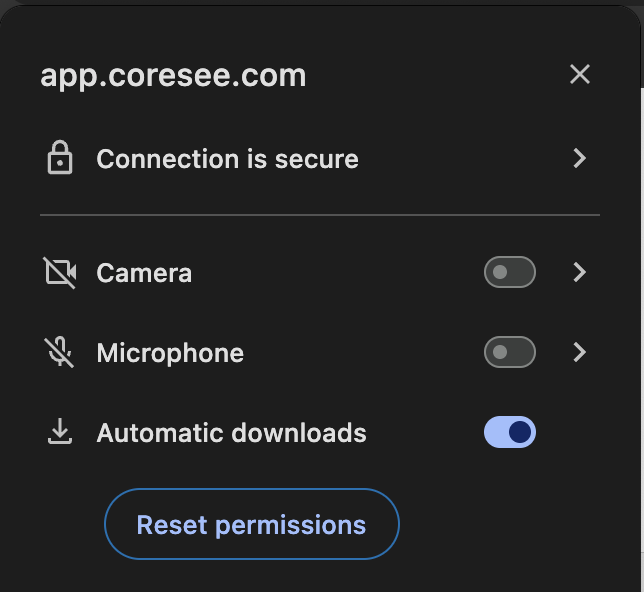
From there, enable the toggles or click Reset permissions in order to see the initial prompt.
Joining without permissions
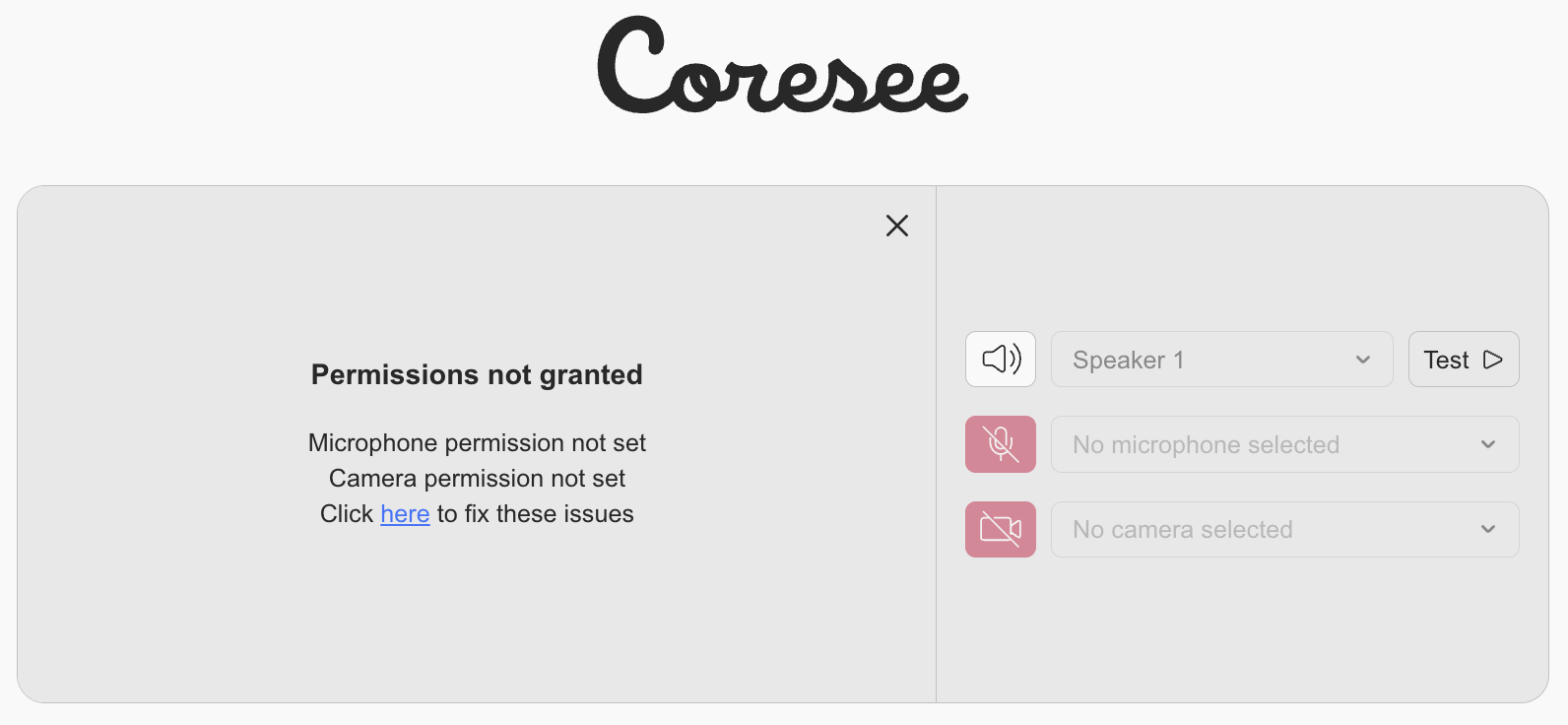
If Coresee detects that camera and microphone access is unavailable when you try to enter a room, it will let you know and give you a choice before proceeding.
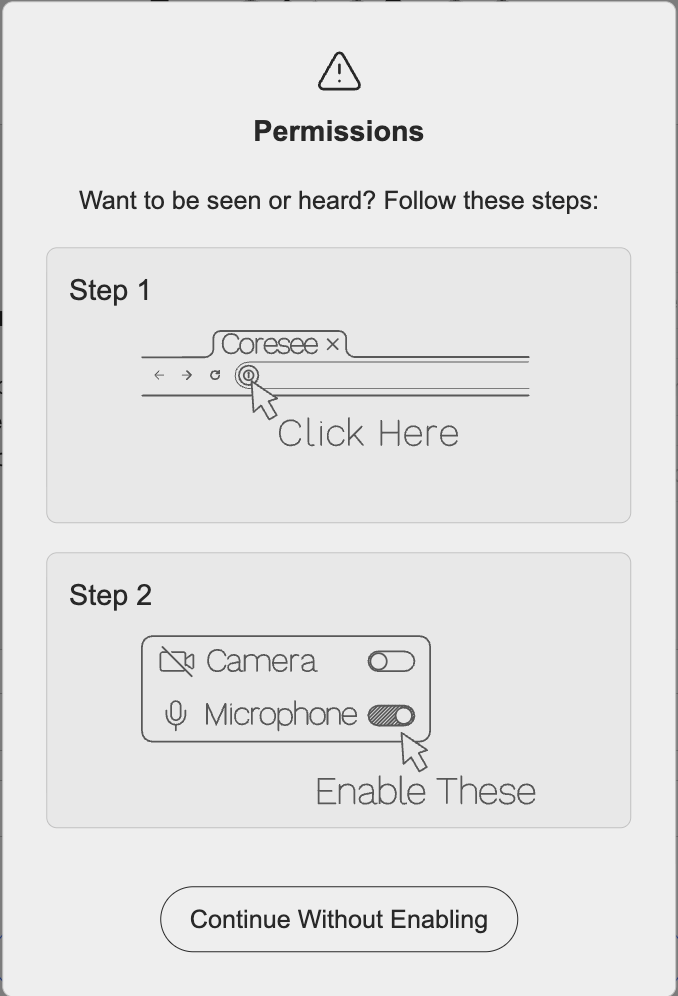
The permissions warning prompt
Before entering the room, Coresee shows a prompt letting you know that your camera and microphone are not enabled. You'll be asked whether you'd like to continue joining the room without them.
- If you continue, you'll enter the room without camera or microphone access. You'll appear in the session but will be unable to speak or show your video until permissions are restored.
Re-granting permissions from inside the room
If you're already in a session and realise your camera or microphone isn't working due to a blocked permission, you can restore access by leaving briefly the room.

How to re-grant permissions mid-session
While you're in the room, the address bar is still accessible at the top of your browser.
Follow the same steps as described in the previous section — click the icon, switch the permissions to Allow in the dropdown.
Chrome requires a page reload for the permission changes to take effect. Reloading will briefly disconnect you from the session and reconnect you — you'll rejoin the same room automatically.
Once the page reloads and you're back in the room, you'll have full access to your camera and microphone for the rest of the session.
Need additional support?
Our support team is available to assist you with any questions or concerns you may have. Feel free to reach out by emailing us at help@coresee.com
Was this article helpful?
That’s Great!
Thank you for your feedback
Sorry! We couldn't be helpful
Thank you for your feedback
Feedback sent
We appreciate your effort and will try to fix the article