The Participants tab, accessible through the Control Panel, allows you to effortlessly manage all participants in a room.

This article will provide you with step-by-step instructions on how to navigate through the Participants tab and its features.
For added clarity, the participant tab displays the Participants list in this hierarchy order:
- Presenter
- Host
- Co-host
- Participant
View Filter
The View filter displays the number of participants and filters those that have their Video cameras on, are using Audio only, or are set to Hidden by the Host. By default, all participants are visible, regardless of their enabled features.
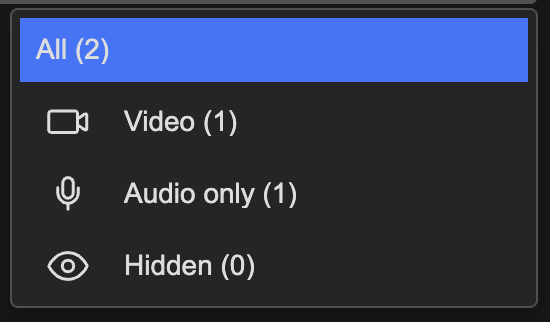
By clicking any of these options, the participant(s) will automatically filter by your selection. For example, when choosing Video, only participants actively using their camera will be visible.
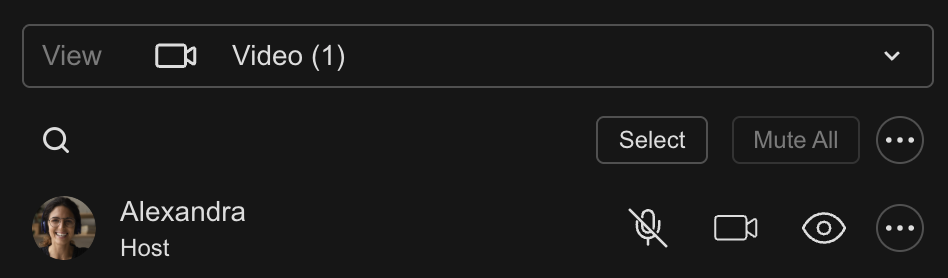
Search Participant(s)
- Click the Search icon
A search bar will expand.

- Type in the name of the participant(s) you would like to find. Names that match your entry will be shown below.
Participant Management Menu
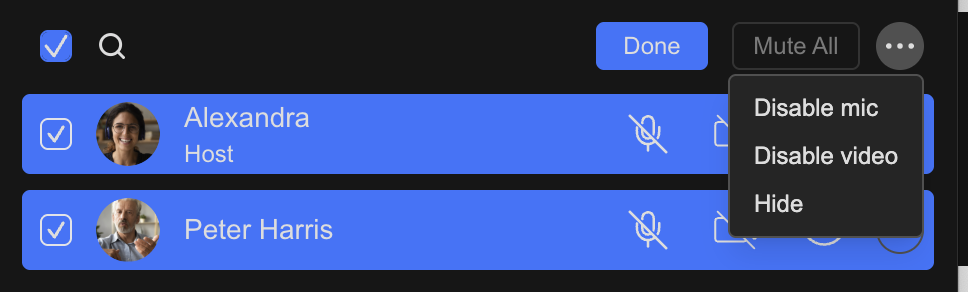
Within the Participants tab, there are two ways to access the Participant Management Menu. It provides a myriad of options for the Host to change individual or multiple participants’ permissions, tile features, and more.
To change functions for multiple participants:
First, click Select.
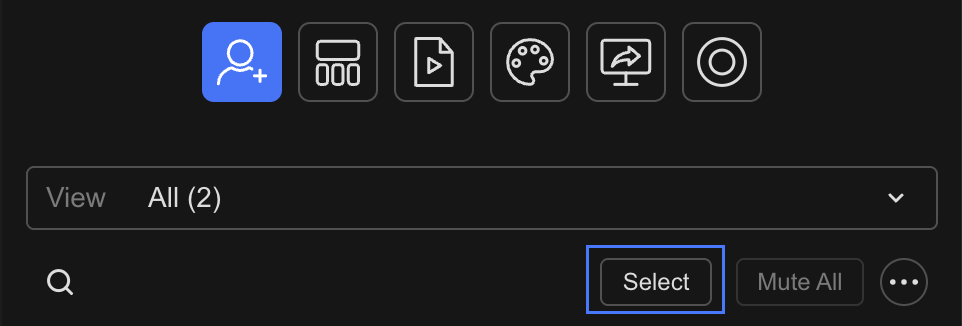
A select all checkbox will appear above the participant list, along with a checkbox to the left of each participant's name.
Then, choose the participant(s) you’d like to focus on and select an option from the Participant Management Menu.
Click Done when you’ve finished making your adjustments.
OR
To change functions for a single participant, simply utilize the menu to the right of the participant's name.
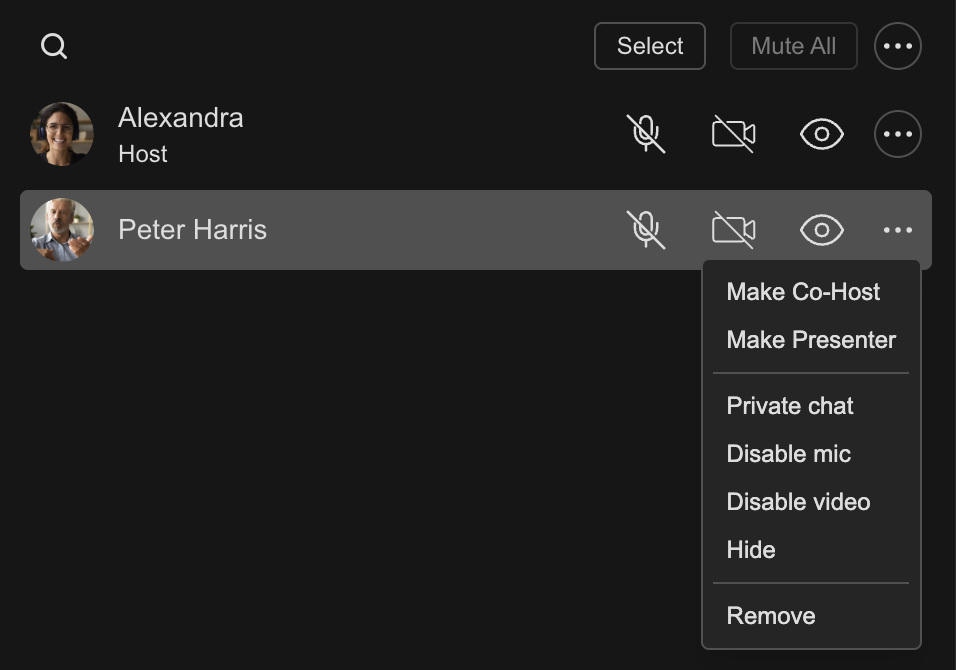
Participant Management Menu Options
Make Co-Host
Designate another participant as a Co-host. When making someone a Co-host, they gain the same level of permissions as a Host. Meaning they can assist in facilitating the meeting.
Only users with a Coresee account have the ability to become Co-hosts.
Make Presenter
By designating a participant a Presenter, their tile will automatically ascend to the top of the room. Additionally, their names will move to the first position of the participant list, making their names easier to locate.
Private Chat
Clicking the private chat option will open a private conversation with this participant.
Disable Mic
Disabling a participant's microphone prevents them from actively participating in the room, and they will not have the option to unmute themselves.
The muted participant's microphone icon will turn grey, indicating that it has been disabled.

Return to the Participant Management Menu and select Enable mic if you would like to allow the participant to use their microphone. When enabled, it will return to its previous state. This means that if you disabled it while the mic was on, it will turn back on when re-enabled. If the mic was off when disabled, it will remain off when enabled again.
Disable Video
By disabling a participant's video, they will lose the ability to use their cameras during a meeting.
The participant's camera icon will turn grey, indicating that it has been disabled.

Return to the Participant Management Menu and select Enable video if you would like to allow the participant to use their camera. When enabled, it will return to its previous state. This means that if you disabled it while the camera was on, it will turn back on when re-enabled. If the camera was off when disabled, it will remain off when enabled again.
Hide
Hiding participants is an effective method for minimizing visual clutter in your meeting room. This feature ensures that hidden participants remain both unseen and unheard by the visible participants. Hidden participants can still watch and hear the active meeting room, and have the option to engage through the Chat feature when necessary.
Once selected, the hide icon located to the right of the participants name, will turn red, indicating it is enabled. Simply click on the icon in order to unhide the participant.

Remove
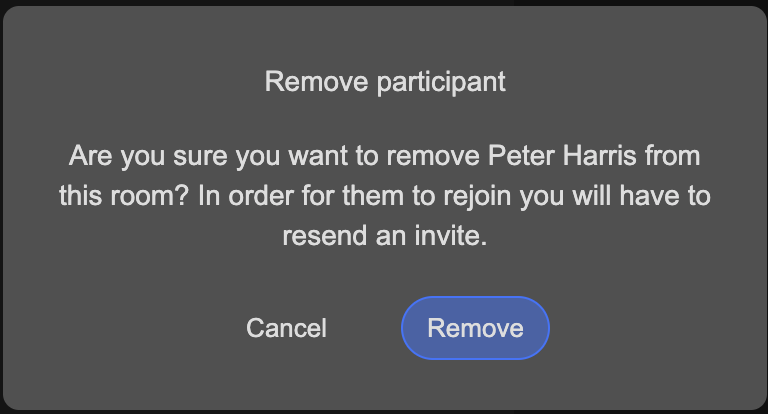
There are several reasons to consider removing a participant from your meeting room. From addressing disruptions, handling technical issues, to violating meeting guidelines. The option to remove a participant at any time is available.
- Select Remove. You will then be prompted to Cancel or continue to Remove the participant.
Quick Icons
Quick icons are handy action buttons for adjusting participant settings. You'll spot these icons on the right side next to each participant's name.



Was this article helpful?
That’s Great!
Thank you for your feedback
Sorry! We couldn't be helpful
Thank you for your feedback
Feedback sent
We appreciate your effort and will try to fix the article