The Appearance tab controls how the room looks during a live session — from the arrangement of video tiles, to branding elements like backgrounds and logos, to what information is displayed on each participant's tile.
It is available in the Control Panel during an active session only. It is not accessible from the homepage.
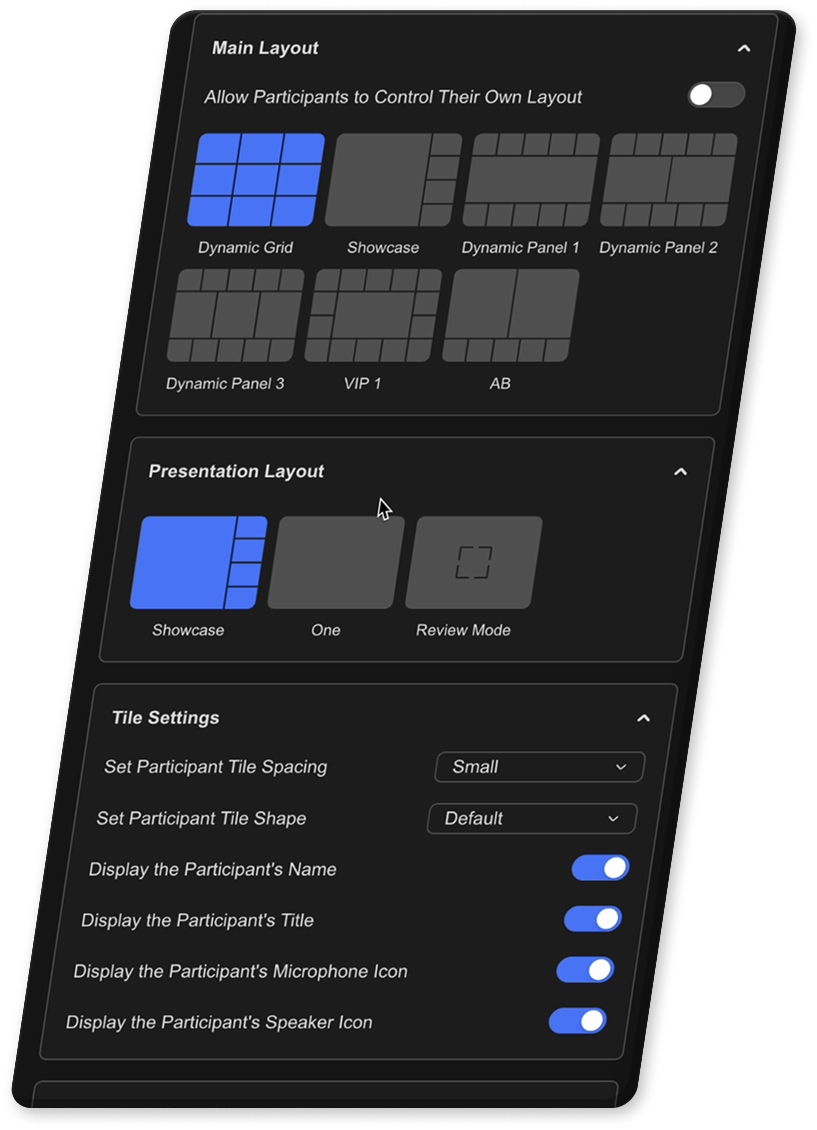
Layout
Coresee uses two layout contexts depending on what's happening in the room. The layouts available to you change based on which context is active.
Main layout
The main layout is active when only participant video tiles are visible — no whiteboard, screen share, or media is being presented. This is the default state of the room. Choose from these layouts:
Presentation layout
The presentation layout is active whenever any presentation is up — a whiteboard, a screen share, media from the Files tab, or any combination of these. The layouts in this context are designed to balance the presentation content with participant tiles:
Letting participants choose their own layout
By default, only the host and co-host can change the room layout. Toggle on Allow Participants to Control Their Own Layout to give participants access to layout controls.
This setting only applies to the main layout. Each participant's choice only affects what they see on their own screen — it doesn't change the view for anyone else. When the setting is off, participants see a greyed-out Appearance tab.
Tile Settings
Tile settings let you fine-tune the visual presentation of participant tiles — how much space is between them, what shape they appear in, and what information is shown on each tile. These controls are host and co-host only and apply room-wide for all participants.
Tile spacing
Sets the gap between tiles in the room view.
Aspect ratio
Sets the shape of each participant's tile. Choose from standard video and cinematic ratios to match your room's visual style or content format.
Display settings
Control what information appears on each participant's tile. Toggle any element on or off independently to keep the view as clean or as detailed as you need.
Personalized Branding
Apply a custom visual identity to your room — a background, a logo overlay, and a curtain. Branding assets are pulled from your room's Media tab (Files), so you'll need to upload them there before selecting them here. This section is host and co-host only.
Replaces the default room background with a custom image or video, visible behind all participant tiles. Select an asset from the Media tab using the picker, then use the toggle to show or hide it during the session.
- Supported formats: images and videos
- Live stream sources are not supported as backgrounds
- If a video background is later converted to HLS format, it will remain applied in the room but will no longer appear in the background selection panel
Adds a logo overlay to the room viewr. Select an image from the Media tab, then toggle it on or off.
- Images only — video logos are not supported
A holding image shown to hidden participants and the grid recording — similar to a stage curtain before a show begins. Use it to keep the room visually polished while you prepare, then lift the curtain when you're ready to go.
- While the curtain is active, hidden participants and the recording see the curtain image instead of the live room
- The host and co-host see a Curtain is down message on the top bar
- Images only — video is not currently supported for the curtain
Need additional support?
Our support team is available to assist you with any questions or concerns you may have. Feel free to reach out by emailing us at help@coresee.com
Was this article helpful?
That’s Great!
Thank you for your feedback
Sorry! We couldn't be helpful
Thank you for your feedback
Feedback sent
We appreciate your effort and will try to fix the article