Overview
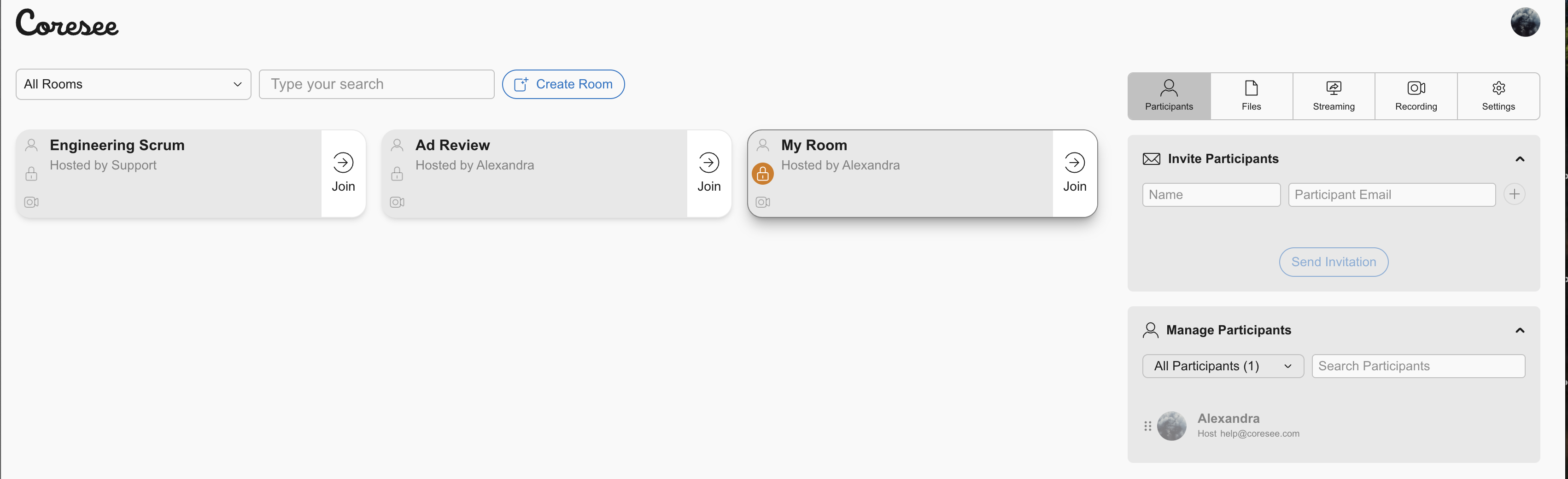
The homepage is your starting point in Coresee. It shows all the rooms on your account and gives you access to manage them — without needing to be in an active session. From the homepage you can enter a room, view your files and recordings, configure room settings, and manage streaming — all before or between meetings.
ℹ️ Homepage vs. room: The homepage is the out-of-session view of a room. Most management actions are available here, but live controls — like participant audio/video management and layout — are only active when you're inside a running session.
Your Rooms
The homepage lists all rooms associated with your account — rooms you own as well as rooms you've been invited to or assigned as co-host of.
Room cards
Each room is represented by a card showing the room name and the host's name. Clicking a card opens that room's Control Panel on the homepage, where you can manage it without entering the session.
Entering a room
To join a session, select the room from your list and click the Join button.
Rooms you're invited to
Rooms you've been added to as a participant or co-host appear alongside your own rooms. Your access to the Control Panel tabs for those rooms follows the same homepage permission rules — hosts can manage settings, recordings, and streaming; participants have read-only access to most areas.
Control Panel on the Homepage
When you select a room from the homepage, the Control Panel opens in the same collapsible side panel used inside live sessions. Not all tabs are available outside of a session — the homepage supports a focused subset.
Available tabs
Need additional support?
Our support team is available to assist you with any questions or concerns you may have. Feel free to reach out by emailing us at help@coresee.com
Was this article helpful?
That’s Great!
Thank you for your feedback
Sorry! We couldn't be helpful
Thank you for your feedback
Feedback sent
We appreciate your effort and will try to fix the article