The Files tab is where all media and files for a room live. Upload assets before or during a session, organise them into folders and playlists, and present them to participants directly from the room. Files persist between sessions — everything you upload stays in the room until you remove it.
The tab is available from both the Control Panel during a live session and from the room on the homepage. Most management actions work the same in both contexts. Presenting files to participants requires an active session.
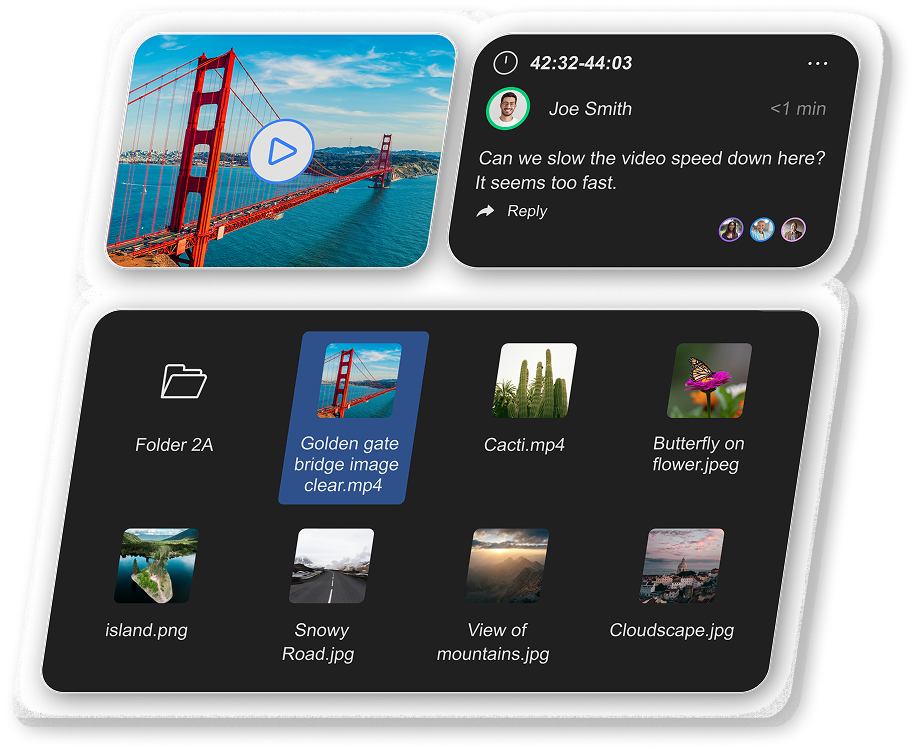
Browsing your files
The file browser lists everything in the room. You can build your own folder structure to keep assets organised, and access playlists from a dedicated subtab.
Searching files
Click the search icon in the Files tab to expand the search bar. Type the name of the file you're looking for. Clear the search by clicking the close icon inside the bar.
Sorting files
Click the sort icon to open a dropdown and choose how the file list is ordered — by name, upload date, or file type.
Uploading files
Upload files to the room before or during a session. Uploaded files are available to all participants in the room and persist between sessions. Uploading is host and co-host only.
Available from both the homepage and inside an active session.
Click the menu icon in the Files tab to reveal upload options.
Choose Upload Files to select one or more individual files from your device
Choose Upload Folder to upload an entire folder and its contents at once. The folder structure will be preserved in the room
A confirmation appears when the file has finished uploading. It will now appear in the file browser.
Presenting a file
As the host or co-host, you can present any file from the Files tab directly to all participants in the room. Presenting is only available during an active session.
Use search or browse to find the asset.
Drag the file over the participant area in the room.
A prompt appears to confirm the action. Once confirmed, the file is presented to all participants in the room immediately.
Linking online media
Add a YouTube link to the room so you can present it to participants during a session. Linked media appears in the Files tab alongside uploaded files. Host and co-host only.
Open the video on YouTube and copy the URL from your browser's address bar.
A field appears for you to paste the URL.
Click the add button to save the link. It appears in the file browser.
It stays in the room between sessions and can be presented or removed like any other file.
Organising files
Folders
Select New Folder from the Files tab menu to create a folder in the file browser. Drag files into it to group related assets together. You can nest folders to create a custom structure that matches your workflow.
Renaming files
Right-click any file and select Rename
Downloading & deleting
Download files to your device or remove files you no longer need from the room.
Downloading files
Select the files you want to download using the checkbox selector, then click the Download icon. You can select multiple files at once. All roles can download files.
Deleting files
Select the files you want to remove using the checkbox selector, then click the Delete icon. A confirmation prompt appears before anything is removed. Host and co-host only.
Asset detail page
Double-clicking any file opens its detail page. If the file is not currently presented in the room, you see a local preview — visible only to you and not shared with other participants. The detail page is divided into three sections.
File Info
Displays the file's metadata: name, upload date, dimensions, codecs, media type, file format, file size, and transcode options.
Annotations
Available for video files only. The host and co-host can add time-stamped comments to the video directly. Annotations are saved against the file and remain visible between sessions.
Settings
These settings control how the file behaves when it is presented in the room. Each setting can be toggled on or off per file.
- Auto-active — video files only. When enabled, the video is presented to the room automatically as soon as it starts playing. Once the video finishes, it removes itself from the stage automatically without any action needed.
- Active — presents the asset to the room immediately when toggled on. Use this to push the file to all participants' views on demand.
- Loop — when enabled, the file plays on repeat until manually stopped.
- Global Mute — mutes the audio for all participants when the file is presented. Participants cannot turn the audio back on themselves while Global Mute is active.
- Auto-mute room — Participants are automatically muted when the video is playing.
- Whiteboard Overlay — controls whether the drawing toolbar is available to participants when the file is presented. When on, participants can use the toolbar to draw annotations over the asset in real time.
- Media Toolbar — when a file is presented, hovering over it shows an on-screen toolbar with controls such as layout switching and stopping the presentation. Toggling this setting on or off determines whether those controls appear on hover.
- Title — when on, the file's name is displayed as an overlay on the asset while it is presented in the room.
- Aspect Ratio — sets the display ratio of the asset when presented (e.g. 16:9, 4:3, 1:1). Choose the ratio that best matches the file's content.
- Playback Speed — adjusts the playback speed of video files
Need additional support?
Our support team is available to assist you with any questions or concerns you may have. Feel free to reach out by emailing us at help@coresee.com
Was this article helpful?
That’s Great!
Thank you for your feedback
Sorry! We couldn't be helpful
Thank you for your feedback
Feedback sent
We appreciate your effort and will try to fix the article