The Recording tab in the Control Panel lets hosts record sessions directly from the room. You can choose how to capture the session, start and stop recording with a single button, and access completed files from the same tab.
The Recording tab is available to all roles for viewing recordings. Starting and stopping a recording is host only, and requires an active session.
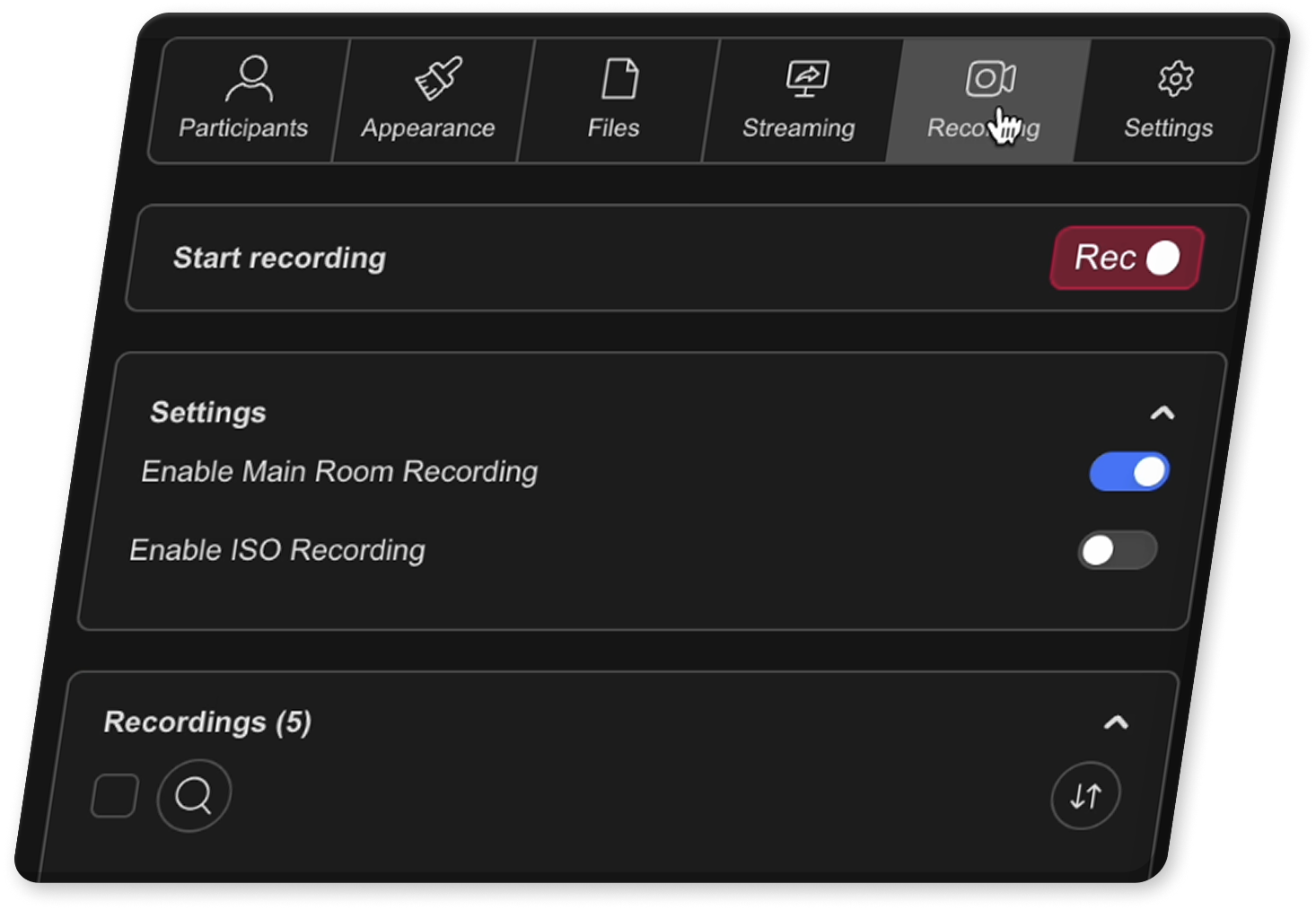
Recording types
Coresee supports two recording modes. You can enable one or both before starting a session.
How to start a recording
Starting a recording only takes a few clicks. You must be the host and inside an active session.
The Recording tab is the fifth tab in the Control Panel. Open it from within your active session.
Main Room Recording is enabled by default. Toggle on ISO Recording as well if you need individual participant files. You can enable both at the same time.
Recording begins. A consent modal is shown to all participants in the room to notify them the session is being recorded.
The active recording file appears in the Recording in Progress section of the tab. You can see it listed while the session continues.
How to stop and download a recording
When you're ready to stop, one click ends the recording. The file is then processed automatically and becomes available to download.
Recording stops immediately. The active file is removed from the Recording in Progress section.
Coresee converts the recording into a downloadable format. Transcoding time depends on the length of the session — longer recordings take a little more time to process.
Once transcoding is done, the file is listed in the recording list below.
Select Download from the menu. The recording is saved to your device.
What participants see
When recording starts, all participants in the room — including those who join mid-recording — are notified.
As soon as the host clicks Rec, a consent modal appears for every participant in the room. This notifies them that the session is being recorded. Participants cannot dismiss or block the recording from the host's side — the modal is purely informational. If they deny, they will be automatically removed from the session.
Managing your recordings
All recordings for the room are listed in the Recording tab and remain accessible between sessions. The recording list is available to all roles, though management actions are host only.
Available actions
- Download — available to all roles. Access via the three-dots menu next to any file.
- Rename — host only. Double-click the file name or use the three-dots menu.
- Delete — host only. Permanent and cannot be undone.
- Copy Recording Link — available to all roles. Note that opening the link requires a Coresee account.
- Sort and search — available to all roles.
Need additional support?
Our support team is available to assist you with any questions or concerns you may have. Feel free to reach out by emailing us at help@coresee.com
Was this article helpful?
That’s Great!
Thank you for your feedback
Sorry! We couldn't be helpful
Thank you for your feedback
Feedback sent
We appreciate your effort and will try to fix the article