Outbound feeds allow you to broadcast your room to any custom RTMP destination.
Outbound feeds are configured per room from the Streaming tab in the Control Panel. Configuration is saved to the room, so your destinations persist between sessions without needing to be re-entered.
ℹ️ Outbound feeds are a Gold plan feature.
Open the Control Panel and access the Streaming tab.
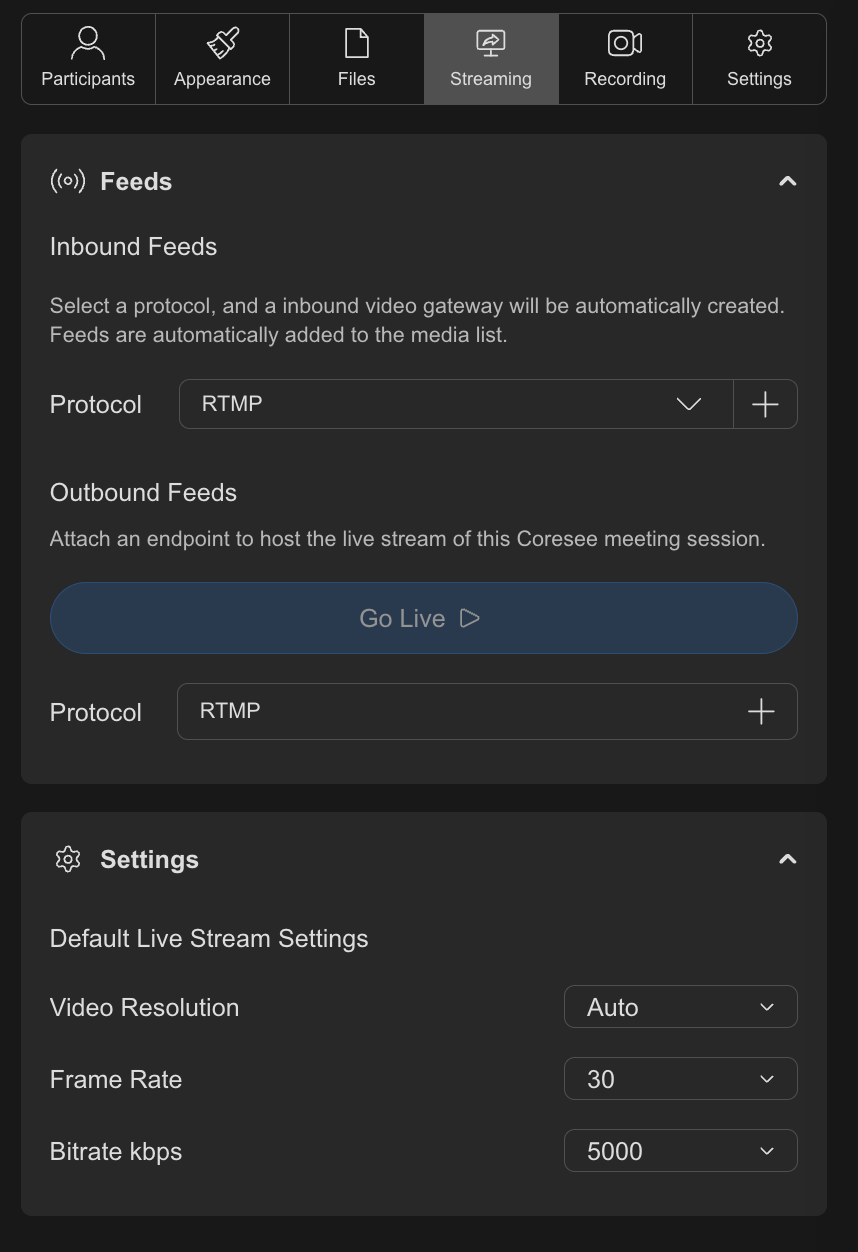
Under the Outbound Feed section, click the plus (+) button next to the RTMP label to create a new outbound feed.
You can create multiple outbound feeds if you need to stream to different destinations simultaneously.
Enter the RTMP Server URL and and Channel Key/Stream Key provided by your streaming platform.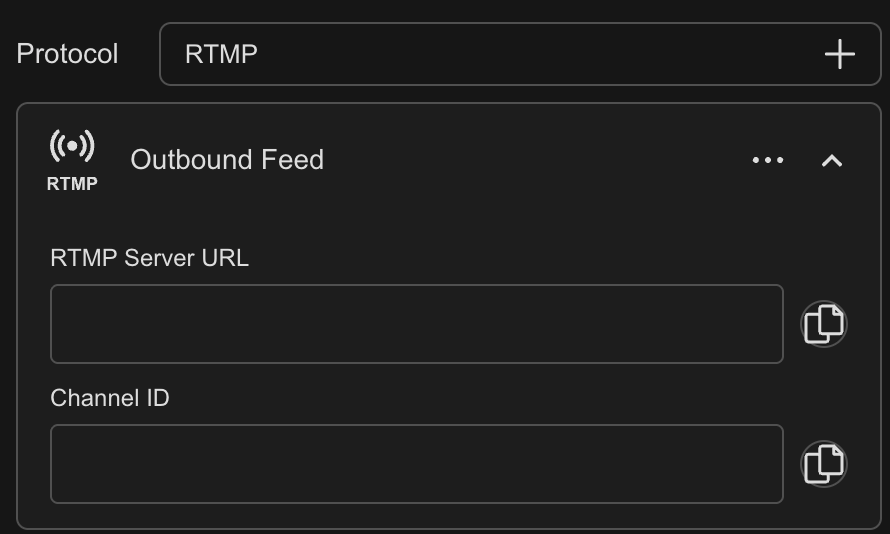
Finally, click Go Live to start streaming.

Your Coresee meeting is now seamlessly streamed to your selected platform!
Stop an active stream anytime by clicking the Stop button.

Need additional support?
Our support team is available to assist you with any questions or concerns you may have. Feel free to reach out by emailing us at help@coresee.com
Was this article helpful?
That’s Great!
Thank you for your feedback
Sorry! We couldn't be helpful
Thank you for your feedback
Feedback sent
We appreciate your effort and will try to fix the article