Leverage the Screen Share tab to easily present documents, slides, and other materials during team meetings. This feature allows for seamless sharing of content, enhancing collaboration and communication with your audience.
Start Screen Sharing
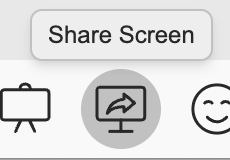
Click the Share Screen icon, located at the bottom bar. A window will appear, allowing you to choose what content to share with your meeting room.
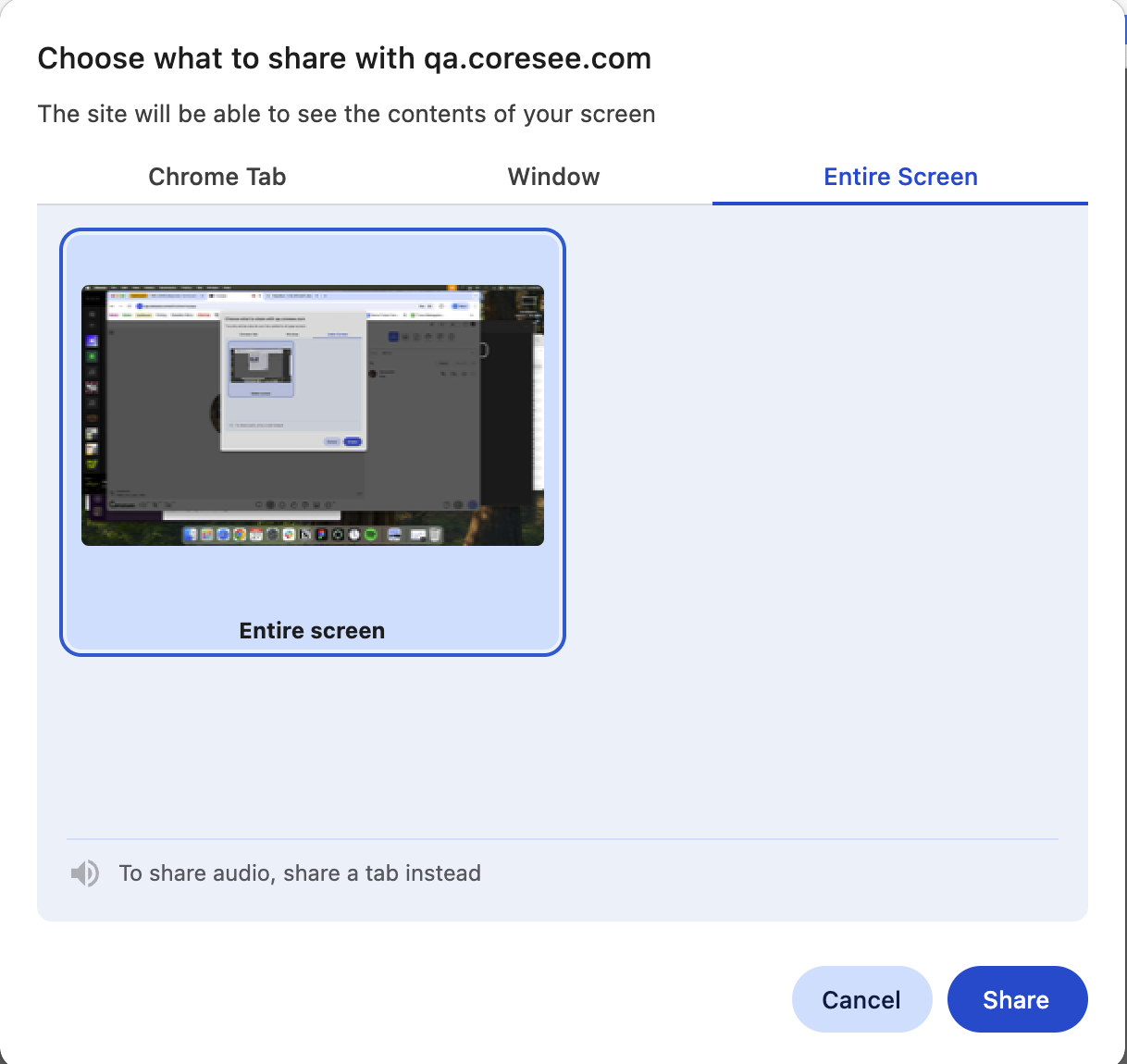 To share audio, share a Chrome tab.
Once you've selected a tab, window or screen, click the Share button, located at the bottom-right hand side of the window.
- If you’ve changed your mind, click the Cancel button to return to your meeting.
Stop Screen Sharing
When you're done sharing your screen, click the Stop Sharing button, located either at the top or bottom of your meeting room window. You may also stop sharing by clicking again on the icon on the bottom bar.

Need additional support?
Our support team is available to assist you with any questions or concerns you may have. Feel free to reach out by emailing us at help@coresee.com
Was this article helpful?
That’s Great!
Thank you for your feedback
Sorry! We couldn't be helpful
Thank you for your feedback
Feedback sent
We appreciate your effort and will try to fix the article