Reactions let you communicate in a session without interrupting the flow. You can raise your hand to signal that you'd like to speak, or send an emoji to respond to what's happening in the room — without needing to unmute.
Both are available to all participants during a live session as two separate buttons in the session toolbar: a dedicated Hand Raise button and an Emoji Reactions button.
Hand Raise
Use Hand Raise to signal to the host that you'd like to make a comment or ask a question. It's a persistent signal — it stays visible until you or the host clears it.
How to raise your hand
Find the Hand Raise button in your session toolbar and click it.
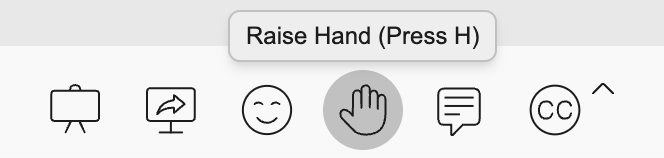
A ✋ emoji appears in the top right corner of your video tile, visible to everyone in the session. The host can see all raised hands in the Participants panel.
How to lower your hand
Click the Hand Raise button again to toggle it off. The emoji is removed from your video tile.
Emoji Reactions
Emoji reactions let you respond to what's happening in the room — applause, agreement, a thumbs up — without needing to say anything. They're brief by design and disappear automatically after a few seconds.
How to add an emoji reaction
Find the Emoji Reactions button in your session toolbar and click it to open the emoji picker.
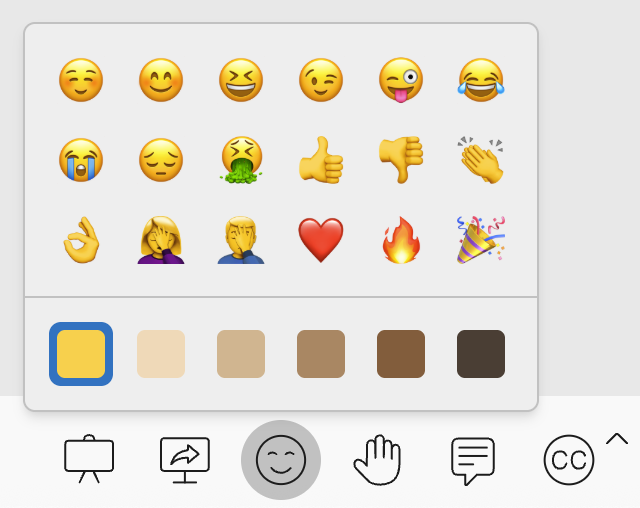
Select any emoji from the picker.
The reaction is displayed briefly on your tile for everyone to see, then fades automatically. No action is needed to dismiss it.
Need additional support?
Our support team is available to assist you with any questions or concerns you may have. Feel free to reach out by emailing us at help@coresee.com
Was this article helpful?
That’s Great!
Thank you for your feedback
Sorry! We couldn't be helpful
Thank you for your feedback
Feedback sent
We appreciate your effort and will try to fix the article